
How to Use Metadata Fixer
To use Metadata Fixer, add all ZIP files from one Google Takeout export, choose a separate destination folder, review the processing options, and start the export. The app reads ZIPs without extracting them and matches media with JSON metadata across the ZIP files you selected.
Updated October 12, 2026
Metadata Fixer repairs metadata using the JSON sidecar files in a Google Takeout export. This walkthrough starts after you have downloaded your Takeout ZIPs. For the Google export steps themselves, use the Google Photos Takeout export guide.
Before you start
- Download and install Metadata Fixer for your computer.
- Keep the original ZIP files unchanged as your backup.
- Download every ZIP part from the same Takeout export before processing. Google may place a photo or video in one ZIP and its JSON file in another.
- Make sure the destination drive has enough free space for the processed media.
You do not need to extract the ZIPs. The app opens them directly. If your export is still downloading, see how to download a large Takeout reliably.
Add your Takeout files
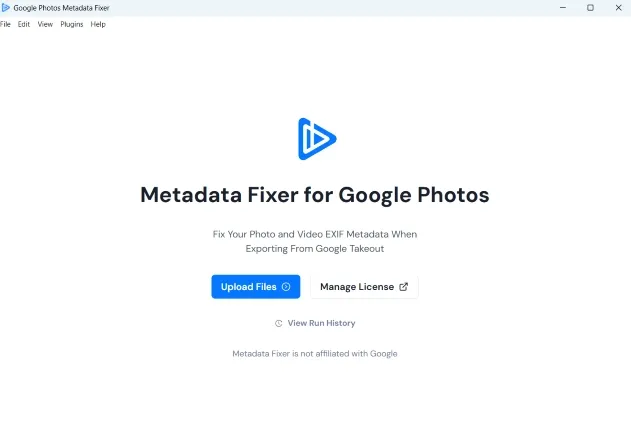
- Open Metadata Fixer and choose Upload Files.
- On the upload screen, select Select Zip Files, or drag the ZIPs into the drop area. You can add multiple ZIP files together.
- Choose every ZIP from the same export. If your export is already extracted, choose Select Folders and add the relevant folders instead.
- Check the file list before continuing. Remove unrelated exports so each run contains the complete set of ZIPs for one Takeout export.
- Continue to the next step. The app may ask whether to run the free demo or process all files with a license.
Processing the ZIPs together matters because matching JSON can be stored separately from the media. The app uses the selected inputs as one set; it does not need you to manually pair each photo with a JSON file.
Choose a destination
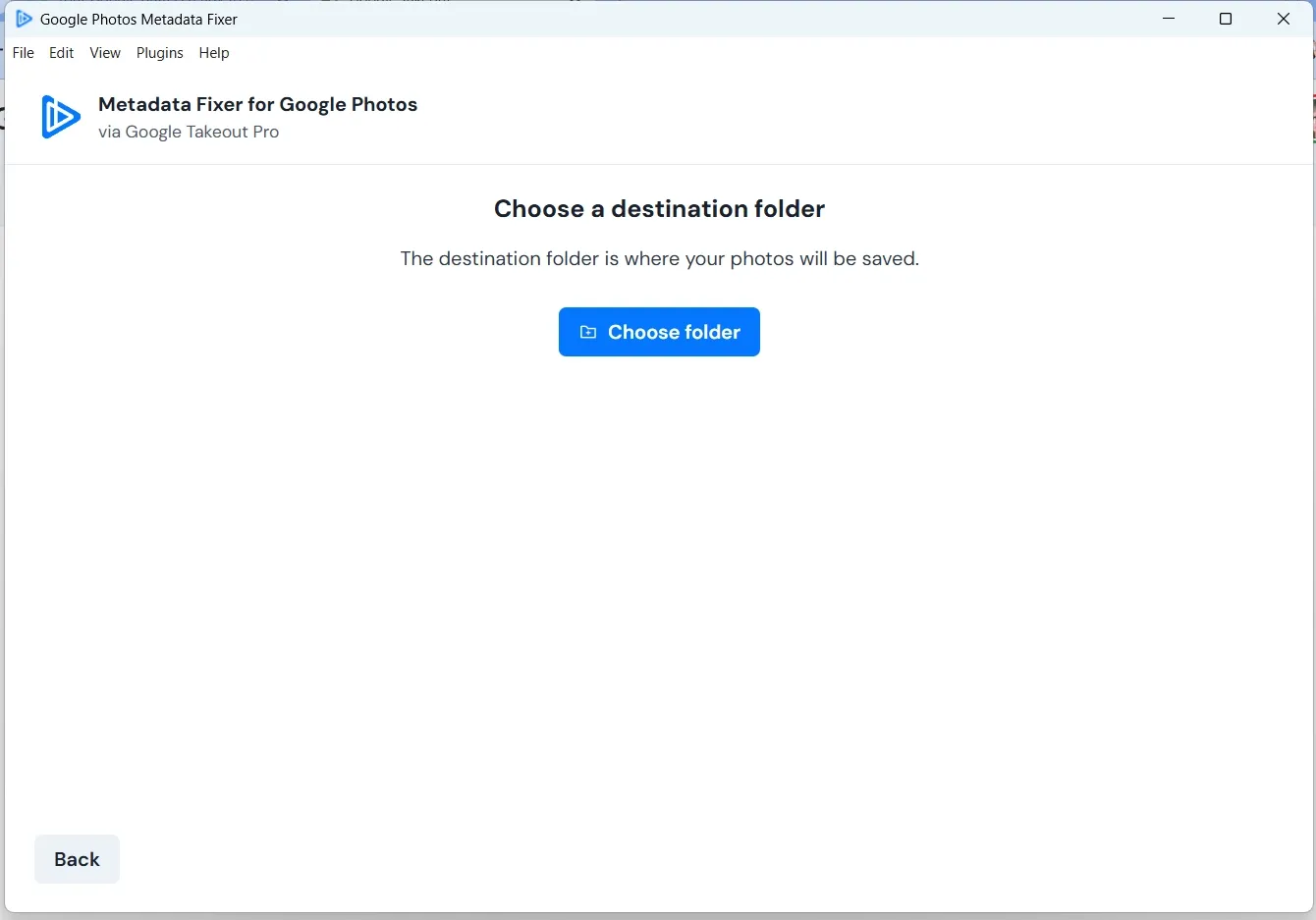
- On Choose a destination folder, select Choose folder.
- Create or select a destination that is separate from your original ZIPs and any extracted source folders.
- Confirm that the destination is on a connected drive with enough space, then continue.
The processed files are written to this destination, leaving your Takeout source available if you need to compare or retry a file.
Review the options
The Options screen lets you choose what metadata to apply and how to handle files that do not have a matching JSON sidecar. Defaults are enabled; review them before moving on.
- GPS: copies latitude and longitude from matching metadata files when available.
- Timezone: uses nearby images and GPS information to try to apply the correct timezone. Results depend on the available location data.
- Files Without Metadata: moves media without a corresponding JSON file into a separate folder for review. When disabled, those files remain in the normal output structure.
- Anonymous Logging: controls whether diagnostic logs are sent to the cloud for troubleshooting. Logs can contain filenames and folder paths. Disable this option if you prefer to keep diagnostic logs on your computer.
When you are ready, select Next to reach the export screen. The metadata that can be applied depends on the information available in your source files.
Start and review the export
- Confirm the destination shown on the export screen.
- Select Start Export. If the free demo asks you to verify your email, enter the six-digit code sent to your inbox. If a countdown appears, wait until it finishes and follow the onscreen prompt to continue.
- Let processing finish. Long runs can be paused and resumed from the app.
- Open the completed output folder. Review the Completed results first, then inspect Errors and retry those files if the app offers that action.
- Check the Files Without Metadata folder if you enabled that option. These files had no matching sidecar in the selected inputs; the folder is a review aid, not proof the media is blank.
- Open a sample of the processed photos and videos in your usual library app. Check a few dates and locations against what you expect before treating the export as finished.
If you need help with an error, keep the processing log from your output folder and follow the support instructions for sharing logs.
The results distinguish successfully processed files, files with no matching JSON, and errors. A successful run does not mean every file received every possible metadata field: the source export must contain the relevant information.
Frequently Asked Questions
Should I add every ZIP from the same Google Takeout export?
Yes. Google can put media and its matching JSON metadata in different ZIP files. Add all ZIPs from one export together so Metadata Fixer can match files across them.
Where should I save the processed files?
Choose a separate destination folder with enough free space. Keeping the output away from the original ZIPs preserves your source export and makes it easier to review the results.
What does Files Without Metadata mean?
When that option is enabled, media files without a matching JSON sidecar are moved to a separate Files Without Metadata folder for review. A missing sidecar does not necessarily mean the photo has no metadata already.
What should I check after processing finishes?
Review the Completed output and any Errors or Files Without Metadata results. Open a sample in your photo library and check dates and locations before importing the whole result. Keep the original Takeout ZIPs as your backup.