
How to Activate Your Metadata Fixer License
To activate Metadata Fixer, copy the license key from your purchase email or license manager, open the app’s activation dialog, paste the key, and select Activate. The app verifies the key, checks the plugins included with your purchase, and may install those plugins before activation finishes.
Updated October 12, 2026
Use these steps when you have purchased a Metadata Fixer license and need to apply it in the desktop app. For help with the photo-processing steps, see the Metadata Fixer tutorial.
Find your license key
Start with the email sent after purchase. If you cannot find it, open the Metadata Fixer license manager and use the email address associated with your purchase:
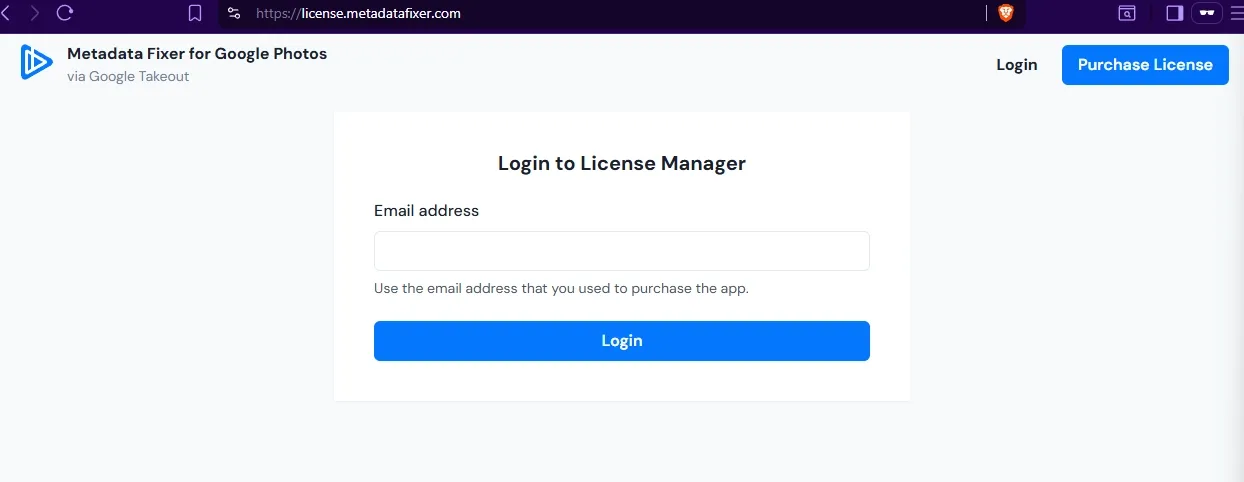
- Enter your purchase email address on the license manager sign-in page, then select Login.
- Check your inbox for the sign-in message. The site sends a magic link; entering your email does not open the dashboard immediately.
- Open the sign-in link from that email to reach your account dashboard.
- Under Your Available Licenses, choose Copy beside your key. If the key is already in use and you are changing computers or reinstalling, follow the reset steps below.
Keep your license key private. If the purchase email went to another address, use that address in the license manager or contact support with your purchase details.
Activate in the desktop app
- Open Metadata Fixer and choose Buy / Activate or Activate App to open the license dialog.
- Paste the key into the License Key field. If the app detects a valid key in your clipboard, choose Paste Key; you can also use the paste control beside the field.
- Select Activate and wait while the app verifies the key and checks owned plugins. Keep the app open until that completes.
- If activation succeeds but a plugin cannot install, note the plugin named in the message and install or retry it from the Plugin Marketplace.
If the app says the key was not found, check for a missing character or extra space and compare it with the purchase email or dashboard. If the license server times out, check your connection and try again later.
Fix an already redeemed license key
A license key is redeemed once. If you are transferring the license to a different computer, reinstalling, or the app reports that the key was already redeemed and you cannot activate, reset the used key in the license manager:
- Sign in to the license manager with the purchase email and open the dashboard from the emailed sign-in link.
- Find the key under Used Licenses and select Reset License.
- Copy the newly generated key from the dashboard and enter that new key in Metadata Fixer using the activation steps above.
Resetting generates a different key and invalidates the previous key for future activation. Use this only when you need to move or reactivate the license; do not reset it just to retry an ordinary processing run.
If you no longer have access to the purchase email, or the dashboard does not show the license, contact Metadata Fixer support with the purchase email and a description of the problem. Do not send your full license key in a public post.
What activation includes
Activating confirms the base license and checks which plugins are included with that purchase. It does not add every plugin in the Plugin Marketplace; plugins not included with your license may require a separate purchase.
You can also use Free Demo without a key. The demo processes up to 100 photos and videos in a run. When you are ready to process all files, return to the app’s license activation flow. For the full processing walkthrough, read How to Use Metadata Fixer.
Frequently Asked Questions
Where can I find my Metadata Fixer license key?
Check the purchase email first. You can also open the Metadata Fixer license manager with the email address used for the purchase: request a sign-in link, open that link from your email, and copy an available key from the dashboard.
Why does Metadata Fixer say my license key was already redeemed?
A key can be redeemed only once. If you are moving to another computer, reinstalling, or cannot activate after a prior redemption, sign in to the license manager and reset the used license. The reset creates a new key and invalidates the previous key for future activation.
Does activating Metadata Fixer install every plugin?
No. Activation checks and installs plugins included with your purchase. Other plugins remain separate and may need their own purchase or installation from the Plugin Marketplace.
Does the free demo need a license key?
No. You can choose Free Demo from the app’s processing flow. The demo processes up to 100 photos and videos per run; a license lets you process all files in the export.
Will I get a dashboard immediately after entering my email?
No. The license manager sends a sign-in link to your email. Open that link to access the dashboard and your license information.