
How to Download Shared Albums From Google Photos
Reading time: 8 minutes
Someone shared a Google Photos album with you — family vacation, wedding photos, your kid's school events. Those photos show up in your library, but when you try to export them with Google Takeout, they're not there. Takeout only exports photos you uploaded. Shared albums are silently skipped.
Why Google Takeout Skips Shared Albums
Google Takeout exports data that belongs to your account. Photos that someone else shared with you technically belong to their account. You just have viewing access. So when Takeout bundles your Google Photos data, shared photos are excluded.
This catches people off guard. You might have hundreds or thousands of photos in shared albums that you consider part of your library. Wedding photos your photographer shared, family albums your parents maintain, trip photos from friends — all invisible to Takeout.
Why Shared Albums Disappear Without Warning
Before getting into the methods, here's why this matters more than most people realize. Shared albums are fragile. The person who shared them controls them entirely. If they delete the album, remove you from it, or delete their Google account, those photos vanish from your library. No warning, no recovery option. Google won't help you get them back.
This happens more often than you'd expect. Couples break up and revoke sharing. A family member passes away and their account gets deleted after inactivity. A friend cleans up their storage and removes old shared albums. Your kid's school switches platforms and deletes their Google account. In every case, the photos are just gone.
What makes this worse: shared photos often carry metadata you can't recreate. The person who took the photo may have had GPS tagging on, added descriptions, or shot in a location you'll never visit again. When a shared album disappears, you don't just lose the images — you lose the dates, places, and context attached to them.
Downloading shared albums gives you a local copy that survives all of these scenarios. Whichever method you pick below, the important thing is to not leave irreplaceable photos in someone else's account.
We tested every approach that actually works. Here are all five, from the most obvious to the most technical.
1. The Manual Way: Google Photos Download Button
The most obvious option. Open a shared album in Google Photos, click the three-dot menu in the top-right corner, and select "Download all." Google bundles the album into a zip file.
It works, but it's tedious at scale:
- If you select individual photos instead of using "Download all," you're capped at 500 photos per batch. A 2,000-photo wedding album means four rounds of selecting, downloading, and extracting.
- Downloaded photos often lose their EXIF metadata — dates, GPS locations, and descriptions get stripped. You end up with files dated "today" instead of when they were taken.
- You have to repeat this one album at a time. Thirty shared albums means thirty separate downloads.
- No pause and resume. If your connection drops, you start the album over.
Works for: one or two small albums where dates don't matter.
2. The Workaround: Save to Library, Then Takeout
The solution Google's own support forums suggest. Open each shared album, select all the photos, and click "Save to your library." This copies them into your account. Then run Google Takeout and the saved photos will be included.
The idea is sound, but it introduces new problems:
- Saved photos count against your storage quota. A 20 GB shared album collection eats 20 GB of your Google storage.
- You have to open each shared album individually and manually save. There's no "save all shared albums" button.
- Metadata may not survive the copy. Some users report dates and locations getting reset when photos are saved to their library.
- Takeout itself has its own issues: downloads can fail, and you'll need to deal with JSON sidecar files either way.
Works for: people already running a Takeout export who just need to add a few shared albums.
3. The Browser Extension: Snapback
We built Snapback because tens of thousands of Metadata Fixer users kept asking the same question: "How do I download shared albums?" We looked at the existing options: manual downloads, the save-to-library workaround, API-based tools. None of them were something we'd actually recommend. So we built a Chrome extension that handles it directly from the browser.
You install it from the Chrome Web Store, open Google Photos, and click one button. That's the entire setup. No accounts to create, no API keys to configure, no scripts to install on top of other scripts. Because it's a Chrome Web Store extension, it goes through Google's review process before every update.
How to download all your shared albums
- Install Snapback from the Chrome Web Store. It takes about five seconds.
- Open photos.google.com and click the Snapback icon in your browser toolbar. The extension reads your library directly from the page. The same photos you see, it sees.
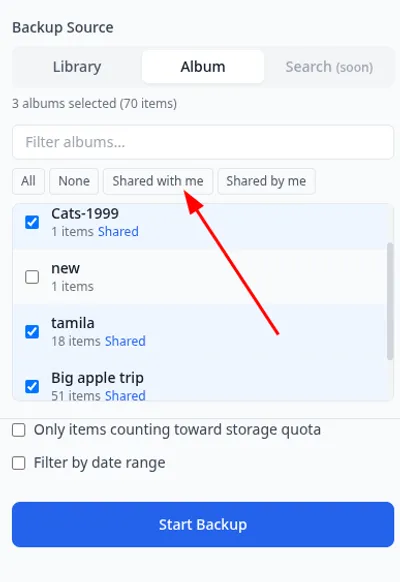
- Switch to the Album tab and click "Shared with me." Every album others have shared with you lights up at once. You can also click individual albums if you only want specific ones, or use "Shared by me" for albums you shared with others.
- Click "Start Backup." All selected shared albums download simultaneously, organized into YYYY/MM date folders on your computer. Each photo lands with a JSON sidecar file containing its original date, GPS coordinates, and description.
If your connection drops or you need to close your laptop, hit pause. When you come back, it picks up exactly where it left off. No re-downloading photos you already have. Everything downloads at original quality regardless of who uploaded it.
One thing Snapback can't do with shared photos: mass-delete them from Google after downloading. That's because shared photos belong to someone else's account. You get a perfect local copy, but the originals stay where they are.
Works for: anyone who wants their shared albums downloaded with metadata intact and doesn't want to touch a terminal.
The two methods below are open-source developer tools you'll see recommended in older forum posts. The userscript still works but requires technical setup. The command-line tools have been broken by Google's API changes. Included here so you don't waste time going down that road.
4. The Userscript Route: Google Photos Toolkit
Google Photos Toolkit is an open-source userscript that injects batch operations into the Google Photos web interface. It can download photos from shared albums, bulk-delete, and filter your library. You install it through Tampermonkey (a userscript manager extension), and it adds controls directly to the Google Photos page.
- Requires Tampermonkey first, then installing the toolkit script on top of it. Two layers of browser extensions.
- Userscripts installed through Tampermonkey don't go through any store review process. You're running third-party JavaScript with full access to whatever page you're on — in this case, your Google account. That's fine if you can read the source code yourself, but worth knowing.
- Downloads photos as a zip but doesn't save metadata: no JSON sidecar files, no EXIF preservation.
- Hooks into Google Photos' internal web interface, so it can break when Google updates their site. You're dependent on the developer pushing a fix.
- You navigate to each shared album and trigger the download yourself. There's no "download all shared albums" button.
Works for: technical users already comfortable with Tampermonkey who want an open-source tool they can inspect and modify.
5. The Command-Line Route: gphotos-sync and rclone (No Longer Works)
Update March 2026: Both tools have been broken by Google's API changes. gphotos-sync was archived by its maintainer in October 2024. rclone's Google Photos backend can now only download photos that were uploaded through rclone itself, not your existing library, and not shared albums. We're keeping this section for context since you'll still find these tools recommended in older forum posts and Reddit threads.
gphotos-sync was a Python tool that synced your Google Photos library to a local folder, including shared albums. rclone has a Google Photos backend that used to do the same. Both relied on the Google Photos Library API.
In 2024, Google restricted the API scopes these tools depended on. rclone's Google Photos backend lost the ability to download existing photos. It can now only access photos it uploaded itself, which defeats the purpose. gphotos-sync's maintainer archived the project entirely. There's an open issue on rclone's GitHub discussing removal of the Google Photos backend.
This is the risk with tools that depend on Google's APIs. Google can change access rules at any time, and third-party developers have no recourse. If you'd set up gphotos-sync for automated backups before 2024, your backup pipeline is now broken.
All Methods Compared
| Manual download | Save + Takeout | Snapback | Toolkit script | gphotos-sync / rclone (broken) | |
|---|---|---|---|---|---|
| Shared albums | One at a time | After manual save | All at once | Yes | Broken by Google |
| Setup required | None | None | Chrome extension | Tampermonkey + script | Python + GCP OAuth |
| Batch size | 500 per selection | Album by album | Entire library | Album by album | N/A |
| Original quality | Yes | Yes | Yes | Yes | N/A |
| Preserves metadata | Often stripped | May not survive | Yes (JSON sidecars) | No | N/A |
| Pause & resume | No | N/A | Yes | No | N/A |
| Eats storage quota | No | Yes | No | No | N/A |
| Price | Free | Free | Free | Free | Free (discontinued) |
Fix Metadata After Downloading
If you used Google's built-in download, your photos may have lost their dates and locations entirely. If you used Snapback or Google Takeout (via the save-to-library workaround), your metadata is in JSON sidecar files alongside your photos. Either way, the metadata isn't embedded in the photo files themselves.
If you plan to import your photos into Apple Photos, Lightroom, a NAS, or any other photo manager, run them through Metadata Fixer first. It reads the JSON files and writes the metadata back into your photos so dates and locations work everywhere.
Download your shared albums today
Snapback is a free Chrome extension that downloads your entire Google Photos library, including shared albums that Google Takeout misses. No Python, no API keys, no Tampermonkey. Install and start downloading in seconds.
Add to Chrome — FreeFrequently Asked Questions
Can Google Takeout export shared albums?
No. Google Takeout only exports photos you uploaded yourself. Photos shared with you by others — even if they appear in your library — are not included in a Takeout export.
Will downloading shared photos remove them for the person who shared them?
No. Downloading creates a copy on your computer. The original stays in the other person's Google Photos library untouched.
Are shared album photos downloaded in original quality?
Yes. Both Snapback and Google's built-in download button give you the original-quality file. The difference is Snapback handles all albums at once with metadata, while the built-in button caps at 500 selections per batch and often strips EXIF data. Note that API-based tools like gphotos-sync may return slightly reduced quality due to compression Google applies at the API level.
What happens to shared album photos if someone stops sharing?
If someone removes you from a shared album or deletes it, those photos disappear from your Google Photos. That's why downloading them is important. Once they're on your computer, they're yours regardless of what happens to the shared album.
Can I download just one shared album instead of everything?
Yes. Most methods let you target individual albums. With Google's built-in download, open the album and use the three-dot menu. With Snapback, switch to the Album tab and select the specific album you want. With gphotos-sync or rclone, use the album name as a parameter.
Do I need to install Python or Tampermonkey to download shared albums?
No. The built-in Google Photos download button (limited to 500 photos per batch) and Snapback (Chrome extension) both work without any technical setup. Python tools like gphotos-sync used to be an option, but the project was archived in 2024 after Google restricted its API. The Google Photos Toolkit userscript still works but requires Tampermonkey.
What about the "Save to library" workaround?
You can manually save shared photos to your own library, then export with Google Takeout. But saved photos count against your storage quota, metadata may not survive the copy, and you have to do it album by album. It works for a handful of photos but not for large collections.