
How to Delete All Google Photos at Once
Reading time: 5 minutes
Google Photos has no "select all" button. Whether you want to remove all photos at once, clear out your library to free up space, or delete everything and start over, Google expects you to select photos in batches of 500, scroll, and repeat. Here are four methods that actually work, from Google's built-in cleanup tool to one-click browser extensions.
Export your library with Google Takeout before deleting anything. Google Photos Trash auto-deletes after 60 days with no recovery. Follow the 3-2-1 backup rule if the photos matter to you.
| Storage Management | Shift+Click | Toolkit Script | Snapback | |
|---|---|---|---|---|
| Deletes entire library | No (categories only) | Yes (in batches) | Yes | Yes |
| Setup required | None | None | Tampermonkey + script | Chrome extension |
| Batch limit | 250 | ~500 | Unlimited | Unlimited |
| Time for ~10 GB | 15-30 min | ~15 min | ~10 min | ~5 min |
| Time for ~100 GB | Can't delete all | 2+ hours | ~30 min | ~20 min |
| Undo (restore) | Trash 60 days | Trash 60 days | Trash 60 days | Restore All + Trash |
| Browser | Any | Any | Chrome / Firefox | Chrome only |
| Open source | N/A | N/A | Yes | No |
| Price | Free | Free | Free | Free |
1. Clean Up Google Photos Storage With the Built-in Tool
Google has a built-in storage management tool that lets you review and delete specific categories of photos in bulk. It won't remove your entire library, but it's the easiest way to free up Google storage space without touching your real photos.
- Open the storage management tool.
- Under "Review and delete," select a category: large photos & videos, screenshots, blurry photos, or photos from other apps.
- Select items — up to 250 at a time.
- Click "Move to trash."
Limitations:
- Only covers specific categories, not your entire library
- 250 items per selection
- Photos that don't fall into those categories are untouched
- Good for trimming storage, not for wiping the library
Works for: cleaning up Google Photos storage by removing junk (screenshots, blurry photos) without touching your real photos.
2. The Manual Shift+Click Method
The brute force approach. Google caps each selection at roughly 500 items, and the page gets sluggish if you scroll too fast. Misclick once and you lose your entire selection.
- Open photos.google.com.
- Click the checkmark on the first photo.
- Scroll down, hold Shift, and click the last visible photo.
- Click the trash icon.
- Repeat for the next batch. A 10,000-photo library takes at least 20 rounds.
Works for: small libraries under ~1,000 photos.
3. Google Photos Toolkit (Userscript)
Google Photos Toolkit is an open-source userscript that injects batch operations into the Google Photos web interface. It can bulk-delete photos, filter by various criteria, and handle operations Google doesn't expose natively.
- Requires installing Tampermonkey first, then the toolkit script on top of it.
- Userscripts installed via Tampermonkey don't go through any store review process — you're running third-party JS with full access to your Google account page. Fine if you can read the source, worth knowing if you can't.
- Can filter and delete by various criteria, not just "all."
- Hooks into Google's internal web interface, so it can break when Google updates their site.
- Free and open-source.
Works for: technical users comfortable with Tampermonkey who want fine-grained control over what gets deleted.
4. Snapback (Chrome Extension)
Snapback is a free Chrome extension that adds a one-click Trash All button to Google Photos. No manual selection, no scripts, no batch limits.
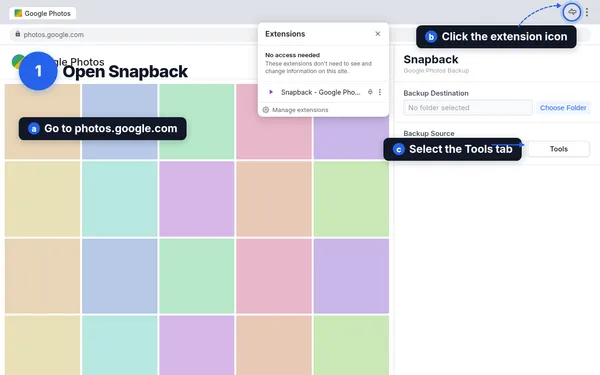
Step 1: Open Snapback
- Install from the Chrome Web Store.
- Open photos.google.com in Chrome.
- Click the extensions puzzle icon in the toolbar to open Snapback, then select the Tools tab.
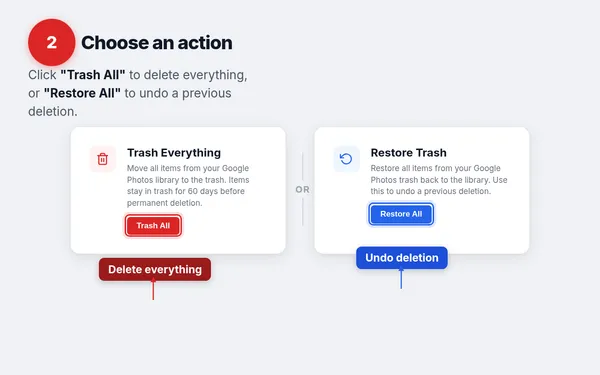
Step 2: Trash All or Restore All
Click Trash All to delete everything, or Restore All to undo. Snapback processes items in batches automatically. You can see the progress and stop at any time.
Snapback requires Chrome. It's a Chrome Web Store extension and does not work in Brave, Edge, or other Chromium-based browsers.
Works for: anyone who wants their entire library deleted (or restored) without manual selection or technical setup. Chrome only.
What Happens After You Trash Everything
- Trash, not permanent deletion. Nothing is immediately destroyed. Your photos sit in Google Photos Trash.
- 60-day window. Google auto-purges Trash after 60 days. Until then, every photo is recoverable.
- Storage isn't freed immediately. Trashed items still count against your quota until permanently deleted. To reclaim space now, open Trash and click "Empty trash."
- Undo anytime. Within 60 days, use Snapback's Restore All button or restore items manually from Trash.
- Phone sync. If sync is enabled on your phone, trashing photos in the cloud can remove them from your device. Disable sync first if you want to keep local copies.
Delete or restore your entire Google Photos library
Snapback is a free Chrome extension that adds bulk operations Google Photos is missing. Trash All, Restore All, download your library, download shared albums. Install it in seconds, no account required.
Add to Chrome — FreeFrequently Asked Questions
How do I delete Google Photos without deleting them from my phone?
Turn off Google Photos sync (backup & sync) on your phone before deleting from the cloud. With sync off, deleting photos at photos.google.com only removes the cloud copy — your phone keeps its local files. If sync is on, deleting from either side deletes from both.
How long do trashed photos stay in Google Photos?
Google keeps trashed items for 60 days before permanently deleting them. During that window you can restore everything using Snapback's Restore All button or manually through the Google Photos Trash.
How do I delete Google Photos to free up storage space?
Delete the photos, then empty the Trash. Photos moved to Trash still count against your Google storage quota until permanently deleted. Go to the Trash section in Google Photos and click "Empty trash" to free up space immediately, or wait 60 days for Google to purge them automatically.
Does Snapback work in Brave?
No. Snapback is a Chrome Web Store extension and only works in Google Chrome. It does not work in Brave, Edge, or other Chromium-based browsers.
What happens if I accidentally trash everything?
Use Snapback's Restore All button to move everything back from Trash to your library. This works anytime within the 60-day window. You can also go to the Trash section in Google Photos and manually restore individual items.